1. Prerequisites — What You Need Before Starting
Before we touch any code, make sure you have these four things. If you're missing any, follow the links to get them — none of them cost money.
A Google Ads Account
Any account — even a test account works. If you manage multiple accounts, you'll want an MCC (Manager) account. ads.google.com
A Google Cloud Project
Free to create. This is where you'll make OAuth credentials so the AI can access your Google Ads data. console.cloud.google.com
Node.js 18 or Newer
Check with
node --version
in your terminal. If you don't have it:
nodejs.org (download the LTS version) or
brew install node
on macOS.
A Google Ads Developer Token
This grants API access to your account. See Step 3A below for exactly how to get one — it takes 5 minutes to apply, 1-3 days for Google to approve.
2. Which Tool Is Right for You?
All paths connect to the same Google Ads API. Pick the one that matches the AI tool you already use (or want to use).
Gemini CLI
Google's free terminal AI. Best for: people who live in the terminal.
Recommended for beginnersClaude Desktop / Claude Code
Anthropic's AI assistant. Best for: people who prefer a GUI or use Claude Code.
GUI + TerminalCursor / Windsurf / Other
Any MCP-compatible client. Best for: developers already using MCP.
Universal MCP3. Get Your Google Ads Credentials
Every path needs these same 5 values. You'll gather them from 3 places, and you only have to do this once. Here's the map:
Google Ads
- Developer Token
- Login Customer ID
Google Cloud Console
- Client ID
- Client Secret
OAuth Playground
- Refresh Token
Let's get each one. Save them in a text file as you go — you'll paste them all in at the end.
Get Your Developer Token from Google Ads
~5 minGo to ads.google.com and sign in.
Click the wrench icon (Tools & Settings) in the top navigation bar.
Under Setup, click API Center.
If you don't see "API Center," your account may not have API access yet. You'll need to apply for a developer token first.
Copy the Developer Token shown on the page. It looks like a random string:
AbCdEf123456.
Note your Login Customer ID — the 10-digit number at the very top of the Google Ads
page (format:
123-456-7890). If you use an MCC (Manager account), use that ID.

GOOGLE_ADS_DEVELOPER_TOKEN=your-token-here
GOOGLE_ADS_LOGIN_CUSTOMER_ID=123-456-7890
Create OAuth Credentials in Google Cloud Console
~5 minGo to console.cloud.google.com and sign in with the same Google account.
Create a project (or select an existing one). The name doesn't matter — something like "Google Ads Agent" works fine.
Click the project dropdown at the top of the page → New Project → name it → Create.
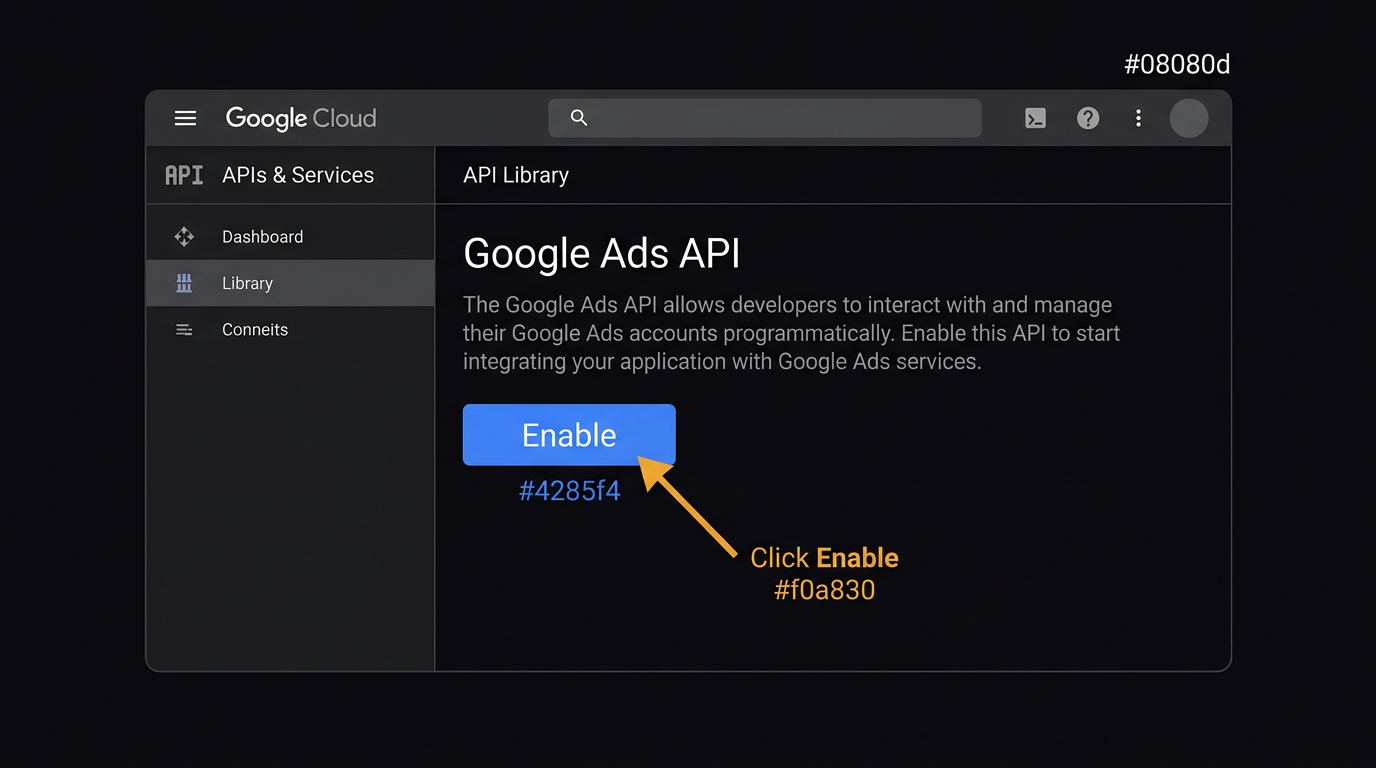
Enable the Google Ads API for your project:
Go to APIs & Services → Library → Google Ads API → click Enable.
Configure the OAuth consent screen (required before creating credentials):
Go to APIs & Services → OAuth consent screen.
- User Type: External (unless you have a Workspace org) → Create
- App name: anything (e.g., "Google Ads Agent")
- User support email: your email
- Developer contact: your email
- Click Save and Continue through the remaining screens (Scopes, Test Users, Summary)
Create OAuth credentials:
Go to APIs & Services → Credentials → + Create Credentials → OAuth client ID.
- Application type: Web application
- Name: anything (e.g., "Google Ads Agent")
-
Authorized redirect URIs: click + Add URI and paste:
https://developers.google.com/oauthplayground - Click Create
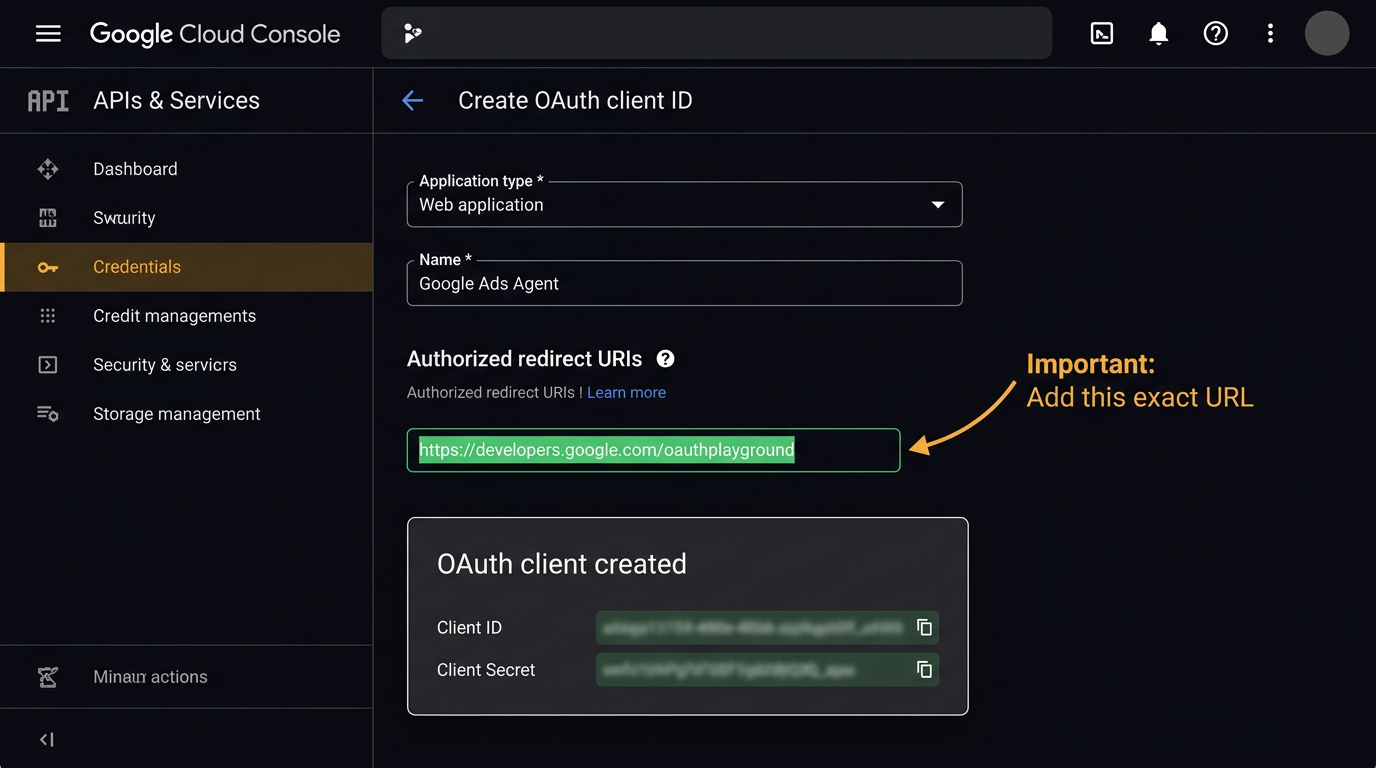
A dialog will show your Client ID and Client Secret. Copy both.
GOOGLE_ADS_CLIENT_SECRET=GOCSPX-your-secret-here
Get a Refresh Token from OAuth Playground
~3 minThe refresh token lets the AI agent authenticate as you without asking for your password every time. It doesn't expire (unless you revoke it).
Click the gear icon (⚙) in the top-right corner of the page. This opens the OAuth 2.0 configuration panel.
Check the box that says "Use your own OAuth credentials".
Paste your Client ID and Client Secret from Step 3B into the fields that appear.
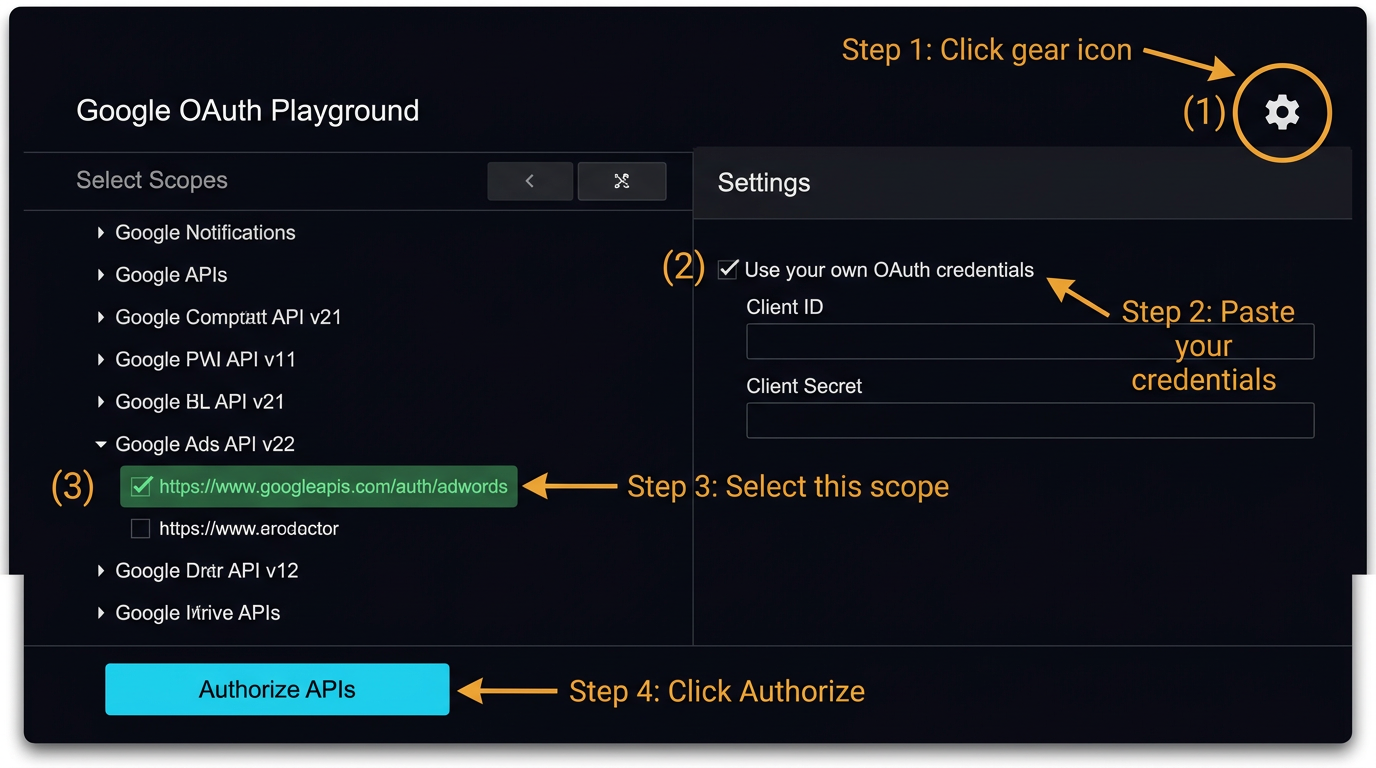
In the left panel, scroll down and find "Google Ads API v22". Click it to expand, then check:
https://www.googleapis.com/auth/adwords
Click the blue "Authorize APIs" button. You'll be redirected to sign in. Use the same Google account that has access to your Google Ads.
After signing in, you'll see a warning about the app being unverified. Click "Advanced" → "Go to [your app name] (unsafe)". This is safe — it's your own OAuth app you just created.
Click "Continue" to grant access, then you'll land back on OAuth Playground.
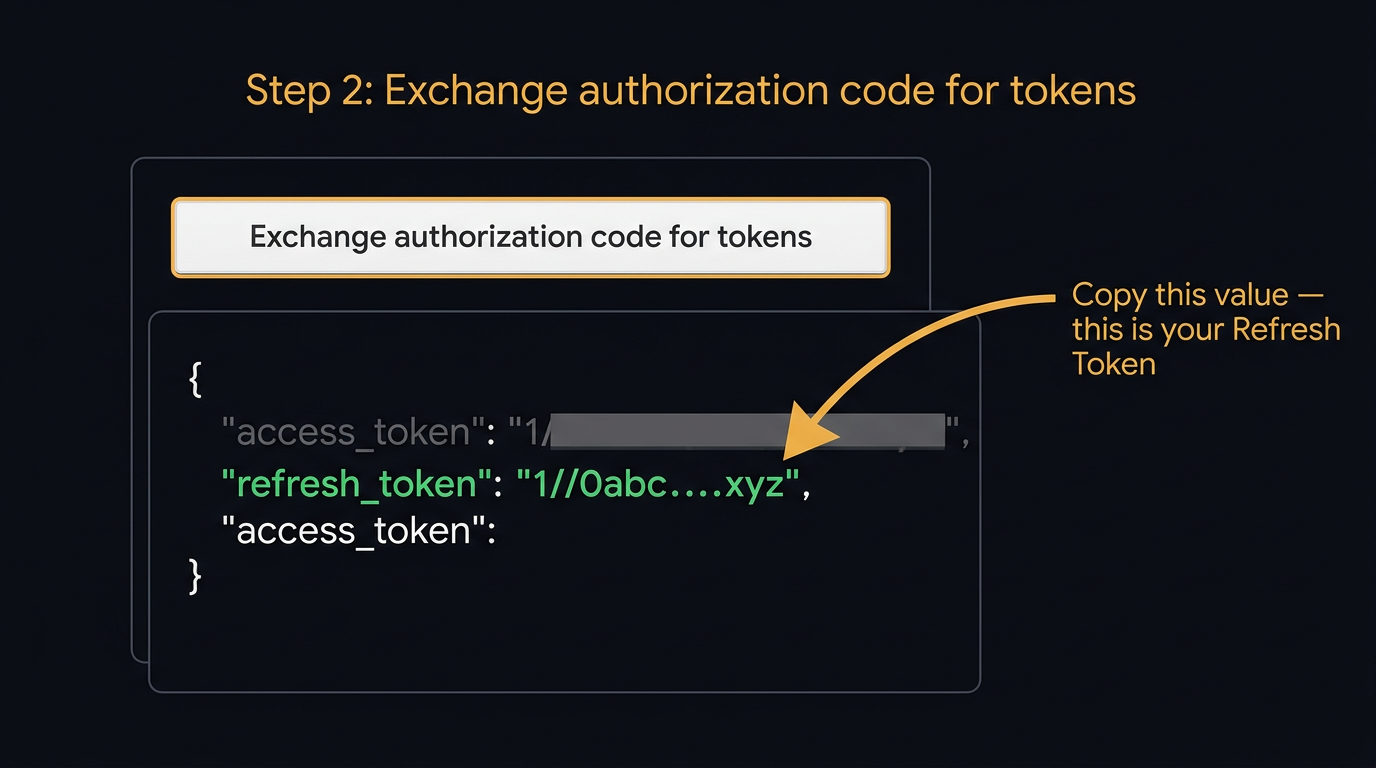
Click "Exchange authorization code for tokens".
Copy the Refresh Token from the response on the right side. It's a long string starting
with
1//.
GOOGLE_ADS_DEVELOPER_TOKEN=your-dev-token
GOOGLE_ADS_LOGIN_CUSTOMER_ID=123-456-7890
GOOGLE_ADS_CLIENT_ID=123456789-abc.apps.googleusercontent.com
GOOGLE_ADS_CLIENT_SECRET=GOCSPX-your-secret-here
GOOGLE_ADS_REFRESH_TOKEN=1//0abc-your-refresh-token
4. Path A: Gemini CLI Setup
The fastest path. Three commands and you're live.
Install Gemini CLI
~1 minnpm install -g @google/gemini-cli
If you prefer Homebrew on macOS:
Verify it installed:
# Should print something like: Gemini CLI v0.35.x
Install the Google Ads Extension
~2 minThis installs the MCP server (22 tools), slash commands, agent skills, safety policies, and themes. You'll be prompted to confirm the install — type Y.
Enter Your Credentials
~2 minIt will prompt you for each of the 5 values you gathered in Step 3. Paste them in one by one:
Login Customer ID: [paste your MCC/account ID, e.g., 123-456-7890]
Client ID: [paste your OAuth client ID]
Client Secret: [paste your client secret]
Refresh Token: [paste your refresh token]
Launch and Test
~1 minThe CLI starts. Type your first command:
You should see a table listing your accounts with IDs, names, and currencies.
✓ What Success Looks Like
┌────────────┬──────────────────┬──────────┐
│ Account ID │ Name │ Currency │
├────────────┼──────────────────┼──────────┤
│ 1234567890 │ My Business │ USD │
│ 0987654321 │ Test Account │ USD │
└────────────┴──────────────────┴──────────┘
If you see your accounts listed, you're done! Try:
Show campaign performance for the last 30 days
What You Can Do Now
> How are my campaigns performing this month?
> Which search terms are wasting money?
> Run an account health check
# Make changes (requires your confirmation before executing)
> Pause campaign 123456789
> Add negative keywords "free, cheap, diy" to campaign 123456789
# Use slash commands for structured analysis
/google-ads:analyze "Brand Search last 30 days"
/google-ads:audit "full account, focus on wasted spend"
/google-ads:optimize "improve ROAS for ecommerce campaigns"
5. Path B: Claude Desktop / Claude Code
Option 1: Claude Code (Terminal)
Install the Google Ads skills and connect the MCP server:
Install Google Ads Skills
~1 min/plugin install google-ads-full@google-ads-skills
This gives Claude 5 skills: campaign analysis, account audit, safe writes (CEP protocol), PPC math, and MCP server configuration.
Plugin bundles available:
-
google-ads-full— All 5 skills (recommended) -
google-ads-readonly— No write access -
google-ads-mcp-only— Just the MCP server config
Connect the MCP Server
~2 min
Add this to
.mcp.json in
your project root:
"mcpServers": {
"google-ads": {
"command": "npx",
"args": ["-y", "@googleadsagent/google-ads-mcp-server"],
"env": {
"GOOGLE_ADS_DEV_TOKEN": "your-dev-token",
"GOOGLE_ADS_CLIENT_ID": "your-client-id",
"GOOGLE_ADS_CLIENT_SECRET": "your-secret",
"GOOGLE_ADS_REFRESH_TOKEN": "your-refresh-token",
"GOOGLE_ADS_CUSTOMER_ID": "123-456-7890"
}
}
}
}
Replace the placeholder values with your 5 credentials from Step 3.
Option 2: Claude Desktop (GUI)
Add the MCP server to your Claude Desktop configuration:
Edit Claude Desktop Config
~2 minOpen this file in any text editor:
~/Library/Application Support/Claude/claude_desktop_config.json
# Windows
%APPDATA%\Claude\claude_desktop_config.json
Add the MCP server configuration:
"mcpServers": {
"google-ads": {
"command": "npx",
"args": ["-y", "@googleadsagent/google-ads-mcp-server"],
"env": {
"GOOGLE_ADS_DEV_TOKEN": "your-dev-token",
"GOOGLE_ADS_CLIENT_ID": "your-client-id",
"GOOGLE_ADS_CLIENT_SECRET": "your-secret",
"GOOGLE_ADS_REFRESH_TOKEN": "your-refresh-token",
"GOOGLE_ADS_CUSTOMER_ID": "123-456-7890"
}
}
}
}
Save the file and restart Claude Desktop. You should see a hammer icon indicating the MCP tools are connected.
6. Path C: Cursor / Windsurf / Other MCP Clients
Any tool that supports MCP (Model Context Protocol) can connect. The setup is the same — you just put the config in different places.
Install the MCP Server
~1 minThe Python MCP server has 29 tools (9 read, 7 audit, 11 write, 2 docs):
Configure Your MCP Client
~2 min
Create a
.env file in
your project with your credentials:
GOOGLE_ADS_LOGIN_CUSTOMER_ID=1234567890
GOOGLE_ADS_CLIENT_ID=your-client-id.apps.googleusercontent.com
GOOGLE_ADS_CLIENT_SECRET=GOCSPX-your-secret
GOOGLE_ADS_REFRESH_TOKEN=1//your-refresh-token
For Cursor
Add to your project's
.cursor/mcp.json:
"mcpServers": {
"google-ads": {
"command": "python",
"args": ["-m", "google_ads_mcp"],
"env": {
"GOOGLE_ADS_DEVELOPER_TOKEN": "your-dev-token",
"GOOGLE_ADS_CLIENT_ID": "your-client-id",
"GOOGLE_ADS_CLIENT_SECRET": "your-secret",
"GOOGLE_ADS_REFRESH_TOKEN": "your-refresh-token",
"GOOGLE_ADS_LOGIN_CUSTOMER_ID": "1234567890"
}
}
}
}
For Windsurf / Other MCP Clients
Use the same JSON structure above — just put it wherever your client expects MCP server configuration. The
server command is
python -m google_ads_mcp
and it communicates via stdio.
7. Verify It Works
Regardless of which path you chose, run this quick test to confirm everything is connected.
🔍 Quick Test
Ask your AI agent:
Expected result: A table showing your account ID(s), name(s), and currency.
If it works, try something more useful:
If it doesn't work, check the Troubleshooting section below.
8. Troubleshooting
| Error / Symptom | Fix |
|---|---|
| command not found: gemini |
Run npm install -g @google/gemini-cli. If npm itself isn't found,
install Node.js first.
|
| command not found: node |
Install Node.js from nodejs.org (LTS version). On macOS:
brew install node.
|
| Authentication failed | Your refresh token may have expired or been revoked. Go back to Step 3C and generate a new one from OAuth Playground. |
| Missing Google Ads credentials |
Gemini CLI: Run gemini extensions config google-ads-agent.
Claude/Cursor: Check your config file has all 5 env vars.
|
| Permission denied | The account isn't accessible under your MCC. Check that your Login Customer ID matches your Manager account, and that the target account is linked. |
| Invalid customer ID format |
Use a 10-digit number. Remove dashes if the tool errors: 1234567890 not
123-456-7890.
|
| Rate limit exceeded | Wait 60 seconds and try again. The extension limits to 10 API calls per minute per tool to prevent runaway requests. |
| Developer Token: "Test Account Only" | Your token may still be pending or in test mode. Check the API Center in Google Ads — it should say "Basic Access." If it says "Test Account," you can only query test accounts until Google approves production access. |
| "App not verified" during OAuth | This is expected for your personal OAuth app. Click Advanced → Go to [app name] (unsafe). It's safe — this is your own app accessing your own data. |
| Extension not loading |
Run gemini extensions list to verify it's installed. If missing, re-run the install command.
If listed but broken, try gemini extensions update google-ads-agent.
|
9. FAQ
The tools are free and open source. Gemini CLI has a free tier (1,000 requests/day). You need a Google Ads account (which requires a payment method), but the API access itself is free. Google Cloud's OAuth setup is free.
No changes happen without your explicit confirmation. Every write operation uses the CEP protocol: Confirm (show you what will change) → Execute (only after you approve) → Post-check (verify it worked). All API calls are logged. Credentials are stored in your system keychain, not in plain text.
Yes. If you only have a single Google Ads account, use that account's ID as both the Login Customer ID and the target account ID. An MCC is only needed if you manage multiple accounts.
They all connect to the same Google Ads API. The difference is which AI tool they're built for:
- Gemini CLI Extension — best for Gemini CLI users. One install command, auto-configures everything, includes slash commands and themes.
- Claude Skills — for Claude Code or Claude Desktop. Teaches Claude Google Ads expertise + connects via MCP.
- Python MCP Server — the universal option. Works with any MCP-compatible client (Cursor, Windsurf, LangChain, OpenAI Agents SDK).
Usually 1-3 business days for Basic Access. You'll get an email from Google. While waiting, you can complete the entire setup — just skip the final verification step until it's approved. If you have an existing test account token, that works for testing (but only against test accounts).
Refresh tokens don't expire automatically, but they can be revoked if you change your Google password, remove the app from your account's connected apps, or if the OAuth app is in "Testing" mode (tokens expire after 7 days for apps with "Testing" publishing status). To fix: set your app to "Production" in the Cloud Console's OAuth consent screen, then generate a new refresh token.
Yes. The OAuth flow works the same way. If your Workspace admin has restricted third-party app access, you may need them to whitelist the OAuth client ID. Most Workspace setups work without any admin changes.